> ## Documentation Index
> Fetch the complete documentation index at: https://help.teable.ai/llms.txt
> Use this file to discover all available pages before exploring further.
# Import
> Import CSV, Excel, Airtable, or Google Sheets data into Teable.
Use import to initialize a new table, append new data to an existing table, or bring tables from Airtable or Google Sheets into a Teable base. Airtable and Google Sheets are also available when you import a whole base.
Use Connect Everything in AI Chat to migrate Airtable, Baserow, NocoDB, SmartSuite, and other systems into Teable.
Excel files are limited to **5MB**. If you need to import a larger dataset, save it as **CSV** first and then import it.
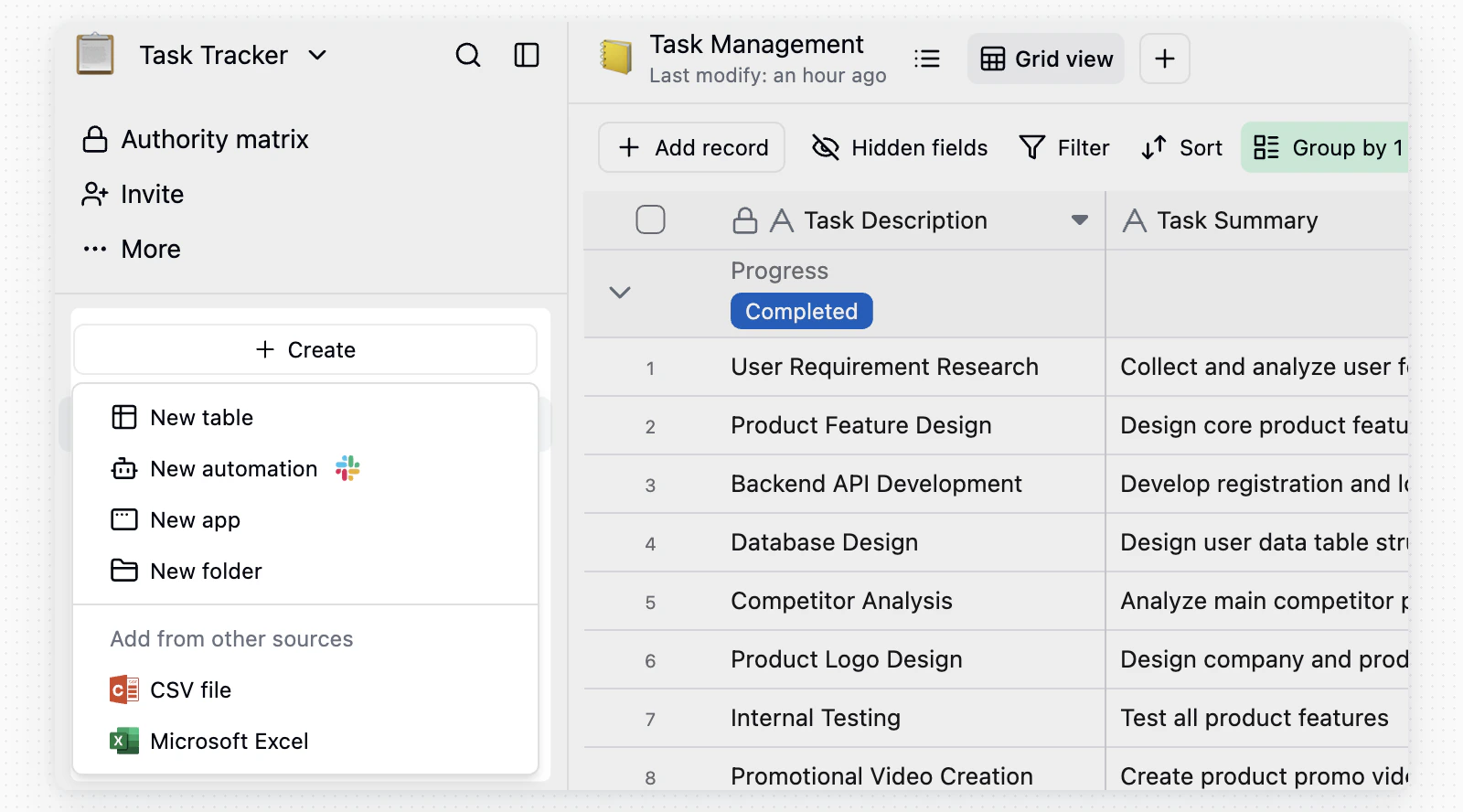
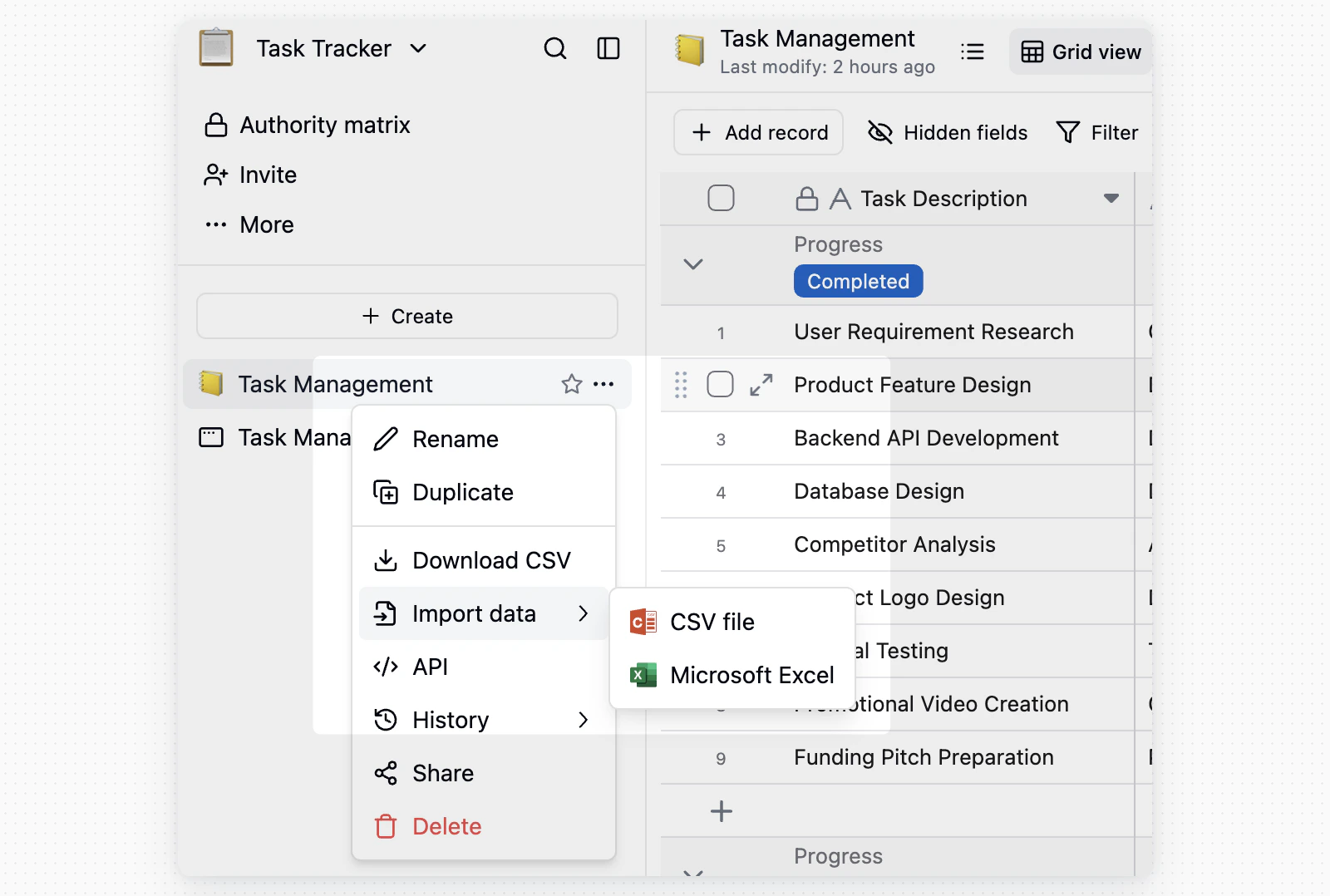
To create a new table, click `+` at the top of the left directory and choose **CSV file** or **Excel file** under **Add from other sources**. To append data to an existing table, choose **Import data** from the target table menu.
Select the CSV or Excel file you want to import. Excel files must be **5MB** or smaller.
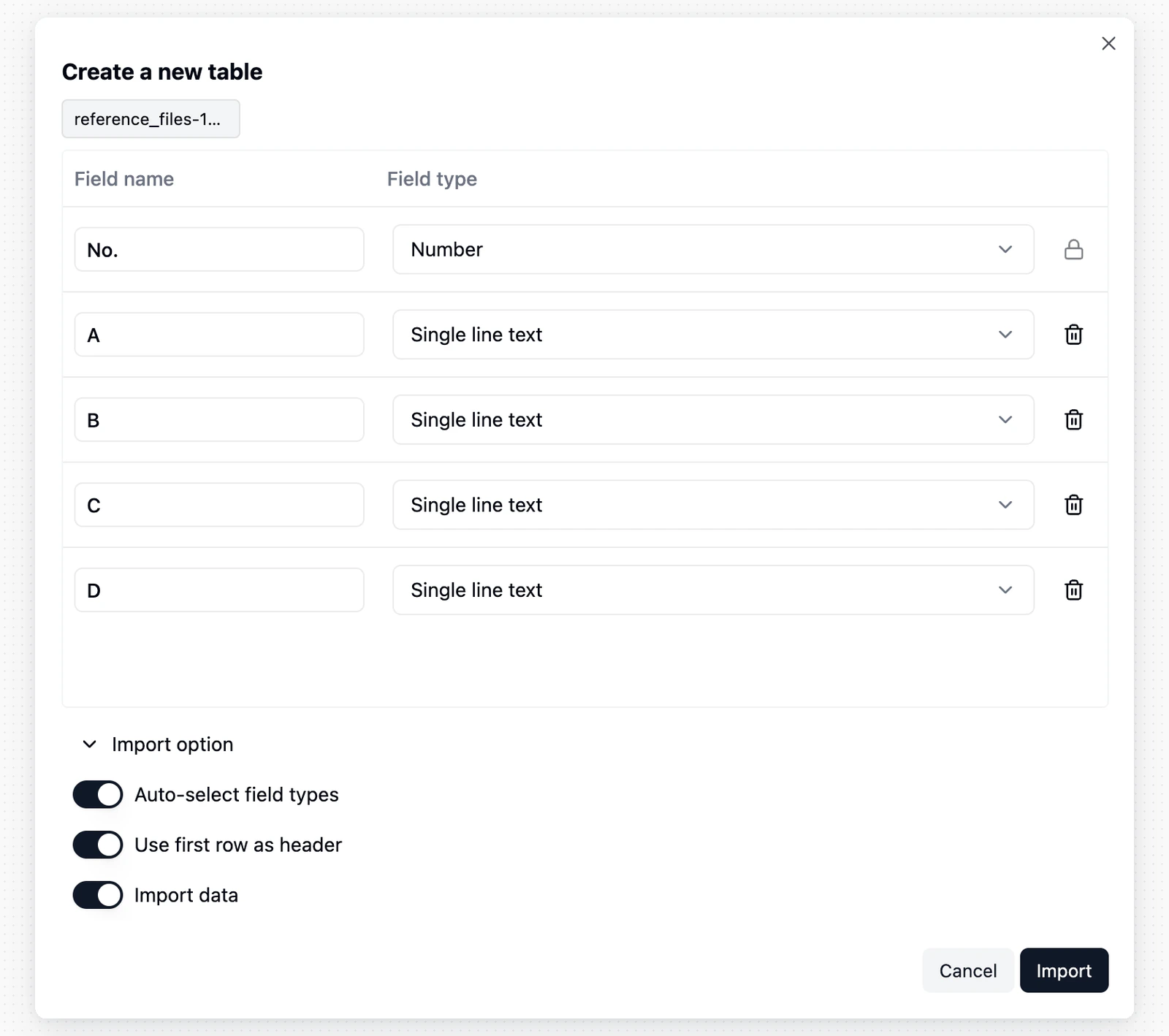
Review the preview after upload. When creating a new table, you can adjust field types. When appending to an existing table, confirm how file columns map to target fields.
Click **Import** and keep the dialog open until the import finishes. It shows how many rows have been imported, and for a multi-sheet Excel file, which sheet is running.
Before the completion notification arrives, do not delete the table being generated, delete fields, or change field types. These changes may affect the import result.
## Import Flow
Click `+` at the top of the left directory, or `+` on the folder that should hold the new table, and select **CSV file** or **Excel file** according to your file type.
 After upload, Teable predicts field types from the first 5,000 rows of data. You can adjust them before importing.
 To append data to an existing table, open the table menu, select **Import data**, and choose the file type.
 After upload, map file columns to fields in the target table, then click **Import**. Teable processes the data in the background and notifies you when the import succeeds or fails.
## Import from Airtable
If Airtable integration is configured for your instance, you can use Airtable import in two ways:
* To create a new Teable base, open the target space menu, click **Import**, then choose **Import from Airtable**.
* To import tables into the Teable base you are viewing, use the base resource menu:
1. Open the target Teable base.
2. Click `+` at the top of the left directory.
3. Under **Add from other sources**, choose **Airtable**.
After upload, map file columns to fields in the target table, then click **Import**. Teable processes the data in the background and notifies you when the import succeeds or fails.
## Import from Airtable
If Airtable integration is configured for your instance, you can use Airtable import in two ways:
* To create a new Teable base, open the target space menu, click **Import**, then choose **Import from Airtable**.
* To import tables into the Teable base you are viewing, use the base resource menu:
1. Open the target Teable base.
2. Click `+` at the top of the left directory.
3. Under **Add from other sources**, choose **Airtable**.
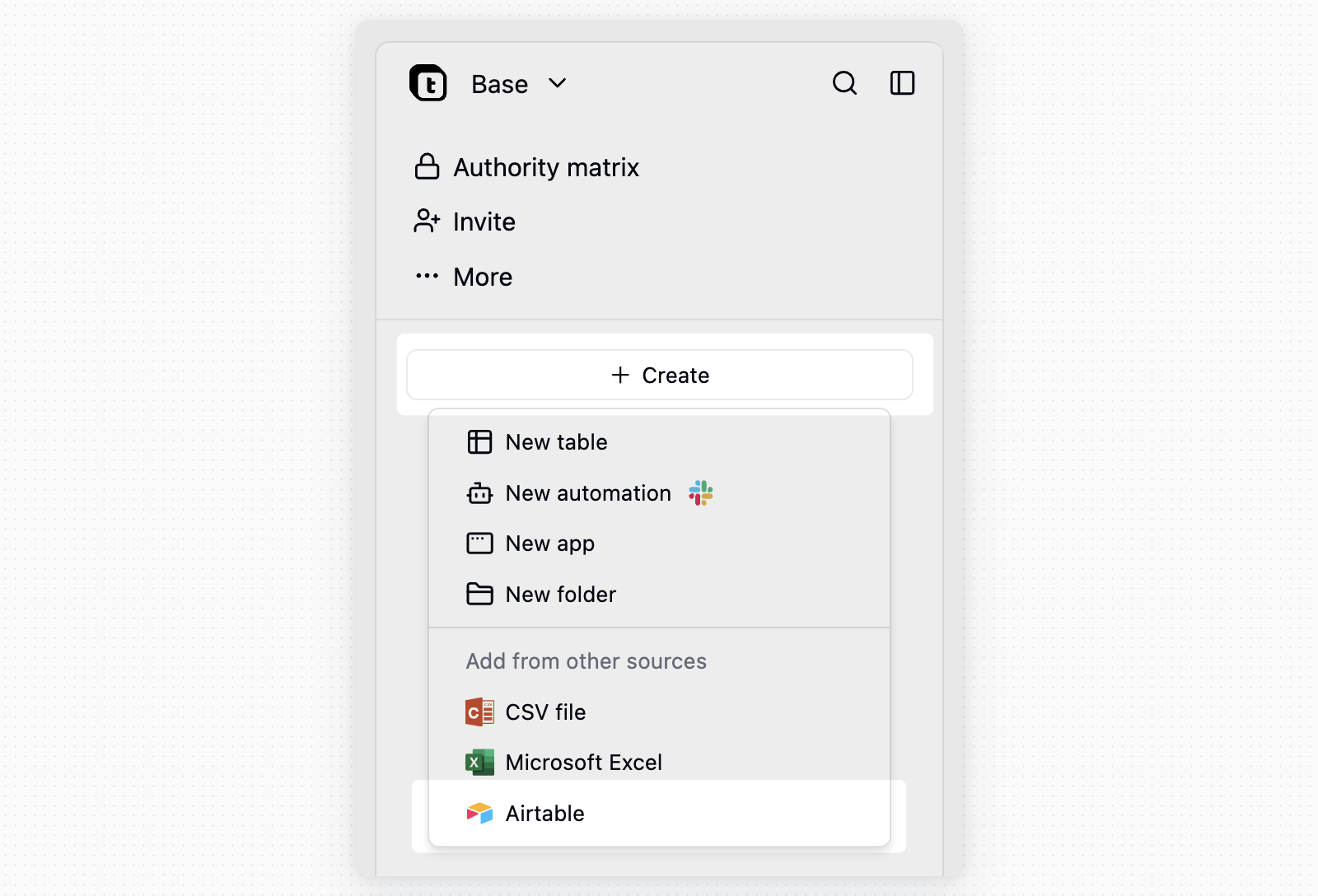 4. Connect your Airtable account if needed, then choose the Airtable base to import.
5. Choose whether to import records, download and import attachments, and import view filters, sorts, and grouping.
6. Click **Start import**.
When **Import view filters, sorts and grouping** is enabled, Teable asks for a read-only Airtable shared-base link because the Airtable API does not expose view settings. In Airtable, open the base's **Share** menu, use **Share to web** with full base access, paste that shared-base link into Teable, then turn the shared link off after the import completes.
During import, Teable shows progress by table. If some fields, views, or values need to be adjusted, the import log lists the changes before showing **Import completed**.
## Import from Google Sheets
Start from either entry point:
* To create a new Teable base, open the target space menu, click **Import**, then choose **Import from Google Sheets**.
* To add tables to the base you are viewing, click `+` at the top of the left directory and choose **Google Sheets** under **Add from other sources**.
The first time you import, click **Connect Google account** and finish authorizing in the popup. Teable remembers the connection for later imports.
Click **Select a spreadsheet from Google Drive** and choose one file in Google's file picker. Teable then reads its structure. Use **Change** to switch to a different spreadsheet.
Each tab is shown as a card with its row and column count. Select the tabs you want. Clear **Import records** if you only want the field structure without the data.
Click **Start import** and keep the dialog open. It reports progress table by table and, when it finishes, how many records each table received. After a new-base import, use **Open base** to go straight to the result.
Teable can only read the spreadsheets you select in Google's file picker, not your whole Drive. To import another file later, open the picker again and select it.
When values or columns need adjusting, the dialog lists each case: an empty tab is skipped, columns beyond the 300-column limit for one tab are not imported, and a value that does not fit the type Teable inferred for its column is dropped. If the import fails partway, the tables that already finished are kept, and the dialog says how many.
## FAQ
The table reached its row limit. That sheet keeps the rows that fit and skips the rest, and the other sheets in the file still import. The result list in the dialog marks which sheet was cut. Import the remaining rows into another table, or raise the row limit for your plan or instance.
A column in the header row is probably missing its name, so Teable used a record as the header instead. Name every column in the header row, remove stray notes from the cells beside the table, then import again.
When a sheet fails, the result list in the dialog shows the reason for that sheet. Before the import starts, Teable also blocks the file when the format does not match the option you chose, when an Excel file is larger than 5MB, or when a field name in the preview is empty or duplicated. Fix the file or the field names, then import again.
## Notes
* **Header row detection**: A CSV file uses the first row as the header. In an Excel file, Teable skips titles and blank rows above the table to find the header row, as long as the header sits on its own row and every column has a name. Check the column names in the preview before importing.
* **Date format**: Teable can recognize common date formats such as `YYYY-MM-DD`. For unusual formats, standardize them before import, or import them as text and convert the field type later.
* **Google Sheets field types**: Teable reads each column's cell formats to choose a field type, so values formatted as dates or numbers in Google Sheets arrive as Date and Number fields. Leading blank rows and banners above the table are skipped when Teable looks for the header row. Check the field types after importing.
* **Airtable select options**: If Airtable select options have names that become identical after trimming spaces, Teable keeps the first option and maps matching record values to it. This prevents duplicate option names during import.
4. Connect your Airtable account if needed, then choose the Airtable base to import.
5. Choose whether to import records, download and import attachments, and import view filters, sorts, and grouping.
6. Click **Start import**.
When **Import view filters, sorts and grouping** is enabled, Teable asks for a read-only Airtable shared-base link because the Airtable API does not expose view settings. In Airtable, open the base's **Share** menu, use **Share to web** with full base access, paste that shared-base link into Teable, then turn the shared link off after the import completes.
During import, Teable shows progress by table. If some fields, views, or values need to be adjusted, the import log lists the changes before showing **Import completed**.
## Import from Google Sheets
Start from either entry point:
* To create a new Teable base, open the target space menu, click **Import**, then choose **Import from Google Sheets**.
* To add tables to the base you are viewing, click `+` at the top of the left directory and choose **Google Sheets** under **Add from other sources**.
The first time you import, click **Connect Google account** and finish authorizing in the popup. Teable remembers the connection for later imports.
Click **Select a spreadsheet from Google Drive** and choose one file in Google's file picker. Teable then reads its structure. Use **Change** to switch to a different spreadsheet.
Each tab is shown as a card with its row and column count. Select the tabs you want. Clear **Import records** if you only want the field structure without the data.
Click **Start import** and keep the dialog open. It reports progress table by table and, when it finishes, how many records each table received. After a new-base import, use **Open base** to go straight to the result.
Teable can only read the spreadsheets you select in Google's file picker, not your whole Drive. To import another file later, open the picker again and select it.
When values or columns need adjusting, the dialog lists each case: an empty tab is skipped, columns beyond the 300-column limit for one tab are not imported, and a value that does not fit the type Teable inferred for its column is dropped. If the import fails partway, the tables that already finished are kept, and the dialog says how many.
## FAQ
The table reached its row limit. That sheet keeps the rows that fit and skips the rest, and the other sheets in the file still import. The result list in the dialog marks which sheet was cut. Import the remaining rows into another table, or raise the row limit for your plan or instance.
A column in the header row is probably missing its name, so Teable used a record as the header instead. Name every column in the header row, remove stray notes from the cells beside the table, then import again.
When a sheet fails, the result list in the dialog shows the reason for that sheet. Before the import starts, Teable also blocks the file when the format does not match the option you chose, when an Excel file is larger than 5MB, or when a field name in the preview is empty or duplicated. Fix the file or the field names, then import again.
## Notes
* **Header row detection**: A CSV file uses the first row as the header. In an Excel file, Teable skips titles and blank rows above the table to find the header row, as long as the header sits on its own row and every column has a name. Check the column names in the preview before importing.
* **Date format**: Teable can recognize common date formats such as `YYYY-MM-DD`. For unusual formats, standardize them before import, or import them as text and convert the field type later.
* **Google Sheets field types**: Teable reads each column's cell formats to choose a field type, so values formatted as dates or numbers in Google Sheets arrive as Date and Number fields. Leading blank rows and banners above the table are skipped when Teable looks for the header row. Check the field types after importing.
* **Airtable select options**: If Airtable select options have names that become identical after trimming spaces, Teable keeps the first option and maps matching record values to it. This prevents duplicate option names during import.