> ## Documentation Index
> Fetch the complete documentation index at: https://help.teable.ai/llms.txt
> Use this file to discover all available pages before exploring further.
# Grid
> Display records in rows and columns for structured viewing, editing, and data cleanup.
Grid view is the most common view in Teable. Each record appears as a row, and each field appears as a column. Use it for daily data entry, bulk editing, sorting, filtering, and quick checks.
## Use Cases
| Scenario | Recommended setup |
| ------------------------ | ----------------------------------------------------------- |
| Maintain data day to day | Enter, edit, copy, and paste records directly in the grid |
| Clean up many records | Combine filters, groups, sorts, and hidden fields |
| Check numeric data | Use selection statistics for average, filled count, and sum |
| Work with wide tables | Freeze key columns so identifying fields stay visible |
## Create a Grid View
Every new table includes a grid view by default. To create another grid view for a specific workflow:
Go to the target table and open the view list on the left.
Click `+` at the top of the view sidebar and choose **Grid view**.
Enter a view name, set the collaboration mode if needed, and create the view.
## Display Settings
### Manage Field Display
 | Action | Description |
| -------------- | ---------------------------------------------------------------------------- |
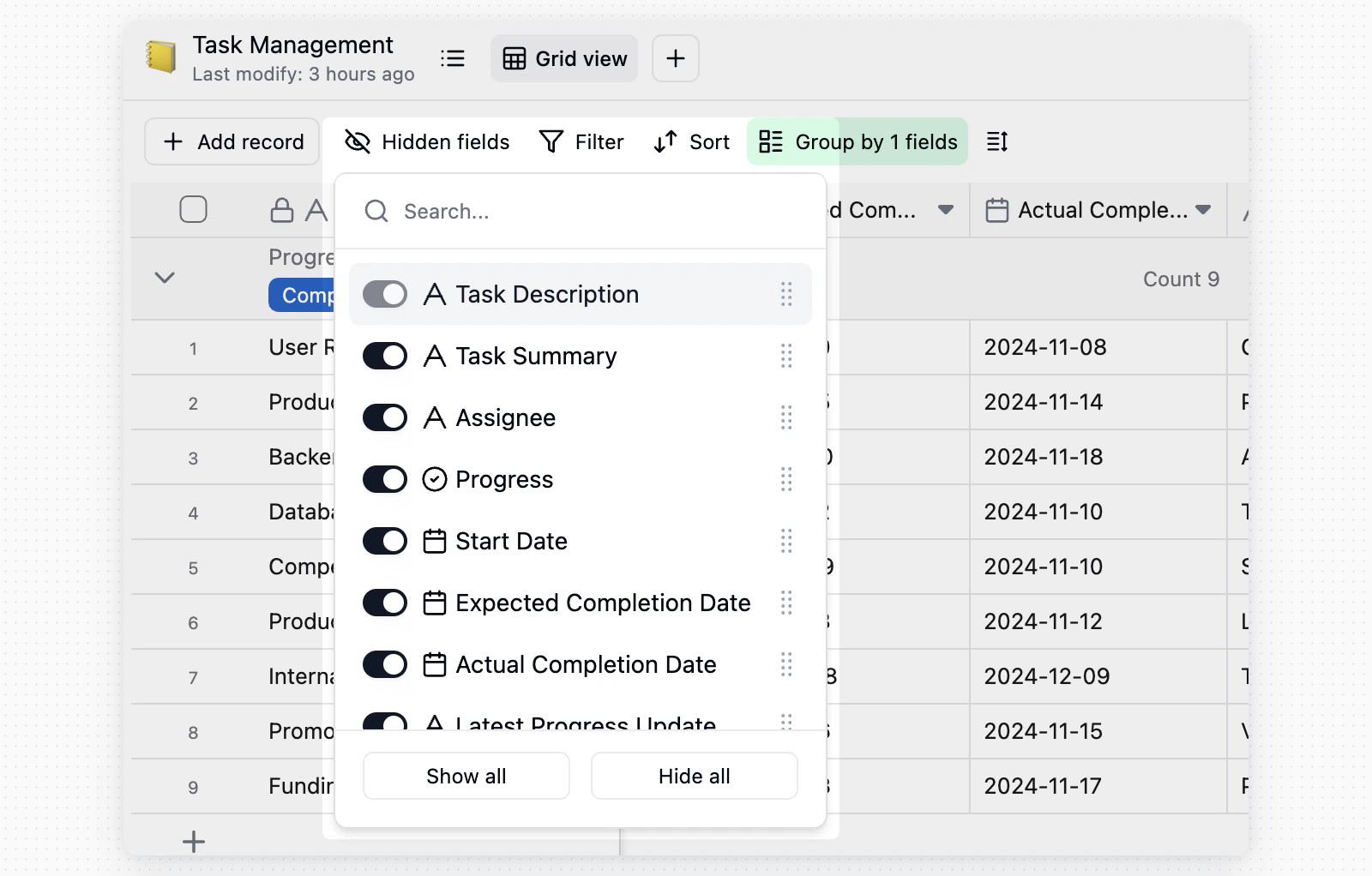
| Hide fields | Click **Hidden fields** in the toolbar and turn fields on or off |
| Reorder fields | Drag field headers left or right |
| Find fields | Search field names in the hidden fields panel when the table has many fields |
Hidden fields only change the current view. They do not delete fields or record data.
### Adjust Row Height and Field Name Height
Click **Row height** in the toolbar to adjust the display density of the table view.
| Action | Description |
| -------------- | ---------------------------------------------------------------------------- |
| Hide fields | Click **Hidden fields** in the toolbar and turn fields on or off |
| Reorder fields | Drag field headers left or right |
| Find fields | Search field names in the hidden fields panel when the table has many fields |
Hidden fields only change the current view. They do not delete fields or record data.
### Adjust Row Height and Field Name Height
Click **Row height** in the toolbar to adjust the display density of the table view.
 * **Row height**: Choose Short, Medium, Tall, or Extra tall to adjust record row height.
* **Field name**: Choose 1 line, 2 lines, or 3 lines to control the display height of column names in the table header.
### Freeze Columns
When a table has many fields, freeze key columns so they stay visible while you scroll horizontally.
* **Row height**: Choose Short, Medium, Tall, or Extra tall to adjust record row height.
* **Field name**: Choose 1 line, 2 lines, or 3 lines to control the display height of column names in the table header.
### Freeze Columns
When a table has many fields, freeze key columns so they stay visible while you scroll horizontally.
 * Drag the freeze divider to freeze the columns on its left.
 * Right-click a field header and choose **Freeze up to this field** to freeze that field and all fields to its left.
* Teable keeps a scrollable area to the right of frozen columns. If the current window is too narrow, **Freeze up to this field** is disabled or Teable shows **Cannot freeze to this area because the current window is too narrow**. Widen the window or freeze fewer columns.
## Edit and Review Data
### Edit and Work in Bulk
* **Edit a cell**: Click any cell and enter or change content.
* **View long content**: Double-click a cell, or select it and press Space, to open the full content.
* **Fill by dragging**: Drag the fill handle at the bottom-right corner of a selected cell to copy values downward.
### Selection Statistics
* Right-click a field header and choose **Freeze up to this field** to freeze that field and all fields to its left.
* Teable keeps a scrollable area to the right of frozen columns. If the current window is too narrow, **Freeze up to this field** is disabled or Teable shows **Cannot freeze to this area because the current window is too narrow**. Widen the window or freeze fewer columns.
## Edit and Review Data
### Edit and Work in Bulk
* **Edit a cell**: Click any cell and enter or change content.
* **View long content**: Double-click a cell, or select it and press Space, to open the full content.
* **Fill by dragging**: Drag the fill handle at the bottom-right corner of a selected cell to copy values downward.
### Selection Statistics
 When you select a range of cells, Teable shows **Average**, **Filled**, and **Sum** for numeric values. Use this for quick checks on amounts, counts, and scores.
### Track Computed Field Activity
When a computed field is waiting, calculating, or has failed, click the calculation activity indicator on the right side of the Grid toolbar to view the current table's status.
| Status | What you can see |
| --------------- | ----------------------------------------- |
| **Calculating** | Affected records and calculation progress |
| **Waiting** | Fields queued for calculation |
| **Failed** | The latest calculation error |
If a calculated value grows past the size a cell can hold, the field reports `Computed cell value is too large` with the attempted and maximum size. The limit is 256 KB per computed cell. The rest of the table keeps calculating and the cell keeps its previous value, so the field recalculates on the next write once the value fits.
A single piece of text or a number rarely reaches 256 KB. The limit is usually hit when a record links to many other records and a Lookup or Rollup pulls all of their long text into one cell. For example, a customer with 500 follow-up records, each holding a few hundred words of notes, exceeds the limit once every note is looked up.
The fix is to keep the details out of the cell: use a Rollup to count or sum the linked records, or look up a shorter field such as a status or a number. Open the linked table when you need to read the full content.
## Notes
* Hidden fields, sorting, filtering, grouping, and similar settings apply only to the current view.
* To prevent accidental configuration changes, lock the view. Only users with permission can unlock or change it.
When you select a range of cells, Teable shows **Average**, **Filled**, and **Sum** for numeric values. Use this for quick checks on amounts, counts, and scores.
### Track Computed Field Activity
When a computed field is waiting, calculating, or has failed, click the calculation activity indicator on the right side of the Grid toolbar to view the current table's status.
| Status | What you can see |
| --------------- | ----------------------------------------- |
| **Calculating** | Affected records and calculation progress |
| **Waiting** | Fields queued for calculation |
| **Failed** | The latest calculation error |
If a calculated value grows past the size a cell can hold, the field reports `Computed cell value is too large` with the attempted and maximum size. The limit is 256 KB per computed cell. The rest of the table keeps calculating and the cell keeps its previous value, so the field recalculates on the next write once the value fits.
A single piece of text or a number rarely reaches 256 KB. The limit is usually hit when a record links to many other records and a Lookup or Rollup pulls all of their long text into one cell. For example, a customer with 500 follow-up records, each holding a few hundred words of notes, exceeds the limit once every note is looked up.
The fix is to keep the details out of the cell: use a Rollup to count or sum the linked records, or look up a shorter field such as a status or a number. Open the linked table when you need to read the full content.
## Notes
* Hidden fields, sorting, filtering, grouping, and similar settings apply only to the current view.
* To prevent accidental configuration changes, lock the view. Only users with permission can unlock or change it.