

Available on all Cloud plans; Self-Hosted requires Business or higher.
An automation runs the steps you configured in advance, while a routine hands the agent an objective to work out for itself. Both can fire on a schedule, and both can fire on an event from a connected third-party app. Use an automation when you need fixed steps and predictable output; use a routine when you want the agent to decide what to do with the current data each time.
Create a Routine
You create a routine through an AI chat.1
Create
In the left sidebar, click + and choose Routine. Teable opens a new AI chat with a creation request already in the message box. When you start from a folder’s +, the request names that folder and asks Cuppy to create the routine in it.
2
Describe the task
After you send it, Cuppy asks what the routine should do and when it should run. Say where the data comes from, how to process it, where the result goes, and when to run, for example “Every weekday at 9 AM, summarize records added to the Tasks table yesterday, group them by owner, and write the summary to the Daily Report table.” You can also click one of the examples in the chat to put it in the message box, then fill in what it leaves blank, such as accounts, pages, or your field, and send it.
3
Review and activate
Cuppy saves the routine as a draft by default, or runs it once or activates it right away if you ask. Open the routine and check the configuration in Routine details. When it looks right, click Activate in the notice at the top of the page, or turn on the switch to the left of the name. The configuration must be complete before you activate: On a schedule needs a future occurrence, and On a connector event needs a usable account.
Settings
On the Edit routine page, Routine objective is the entire instruction for each run, so when you change it, still state where the data comes from, how to process it, and where the result goes. Besides the objective, the page carries these settings:
The model and effort level are saved with the configuration, and every run uses that saved choice. Switching models in AI chat later does not change it. If the saved model is no longer offered, runs fall back to the default model.
Trigger
On a schedule runs the routine at the times you set, configured under Schedule below. On a connector event runs it once whenever a connected third-party app reports an event, such as a new email or a new issue. Pick the app, the event, the Account that receives it, and whatever parameters the event takes; it is configured exactly like the automation trigger, described in When Connector Event Received. A routine on this trigger has no Next run time and does not use Schedule. If the account grant is revoked, the connected account is removed, or the app stops the subscription, the routine reports Subscription disconnected and stops receiving events, and Teable notifies the routine’s owner. Reconnecting the same account rebuilds the subscription on its own; to use a different one, pick another account and save.Schedule
Schedule is used by On a schedule only. Pick a frequency from the presets: Hourly at a given minute, Daily and Weekdays at a given time, Weekly on a weekday and time, Monthly on a day and time. Except for hourly, click + to add more times on the same row. To combine different frequencies, click Add schedule for another row. The routine runs whenever any row comes due, and only once when several rows land on the same moment. A routine can combine up to 10 rules, where each time on a row with a different minute counts as its own rule, and across all schedules two runs must be at least 1 hour apart. For anything more specific, choose Custom (RRULE) and write an RFC 5545 rule, such asFREQ=DAILY;BYHOUR=9;BYMINUTE=0. A custom rule has these limits:
- The frequency must be
HOURLY,DAILY,WEEKLY,MONTHLY, orYEARLY, and two runs must be at least 1 hour apart. - You can use
INTERVAL,COUNT,BYDAY,BYMONTHDAY,BYMONTH, plus oneBYMINUTEand oneBYHOUR.COUNTtops out at 1000. - The timezone and start time belong to the routine, so
TZID,DTSTART,UNTIL, andBYSECONDare rejected.
COUNT=1.
A schedule is evaluated in the routine’s timezone. That timezone is taken from whoever first configures the routine and does not follow later editors or viewers. The Next run time shown in the interface is already converted to your local time.
Drafts, Updates, and Running Now
A routine that has not been activated is a draft and does not run by itself. To change the configuration, click Edit in Routine details on the routine page to open the Edit routine page. When you edit an active routine, changes are saved automatically as a draft while the live version keeps running on the old configuration. A notice at the top of the page flags the unpublished changes: click Update to apply them, or Discard changes to drop them.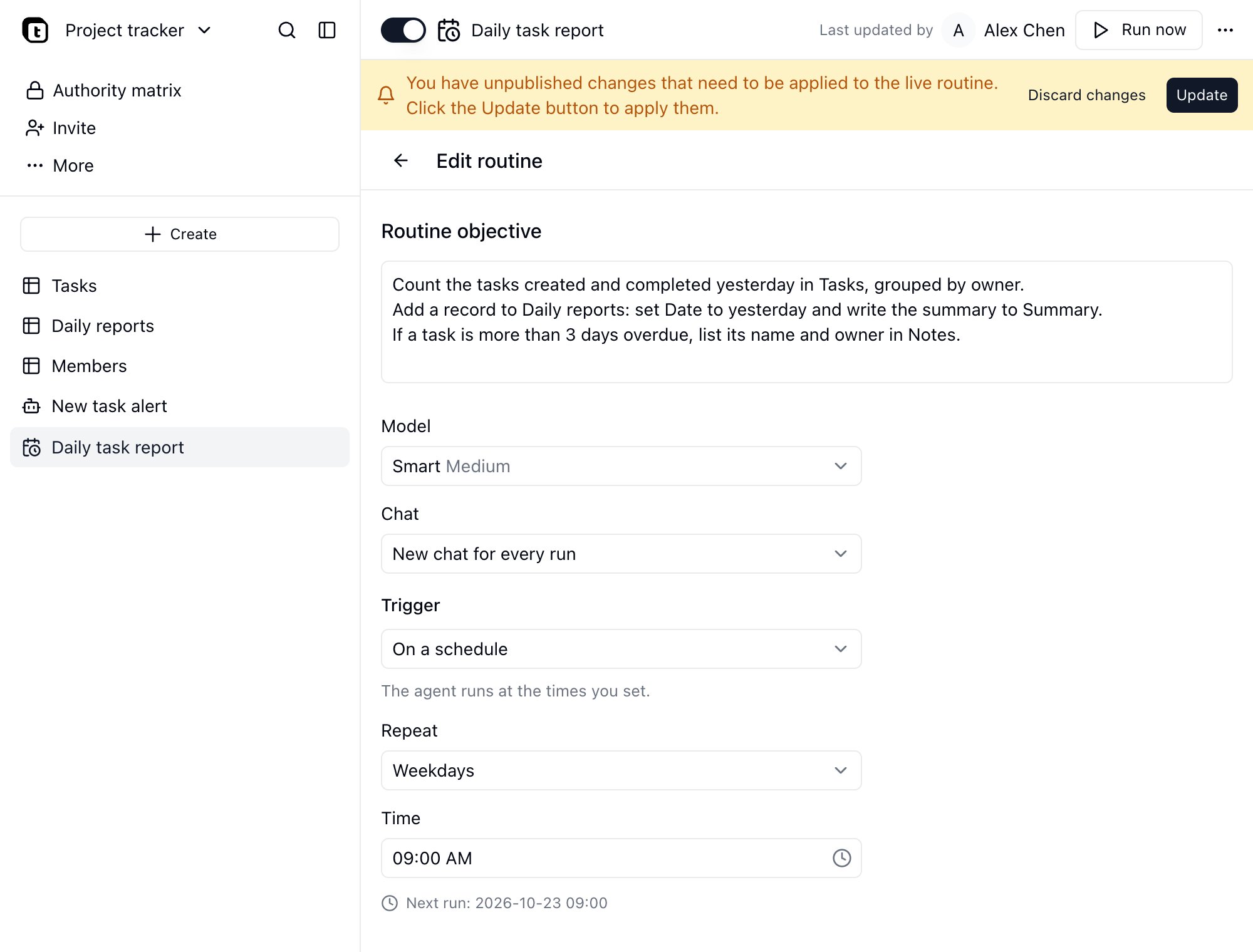
Routine History
Open a routine to see Routine details on one side, summarizing the objective, trigger, next run time, model, and chat mode, and Routine history on the other, which lists every run in time order under the name of its conversation.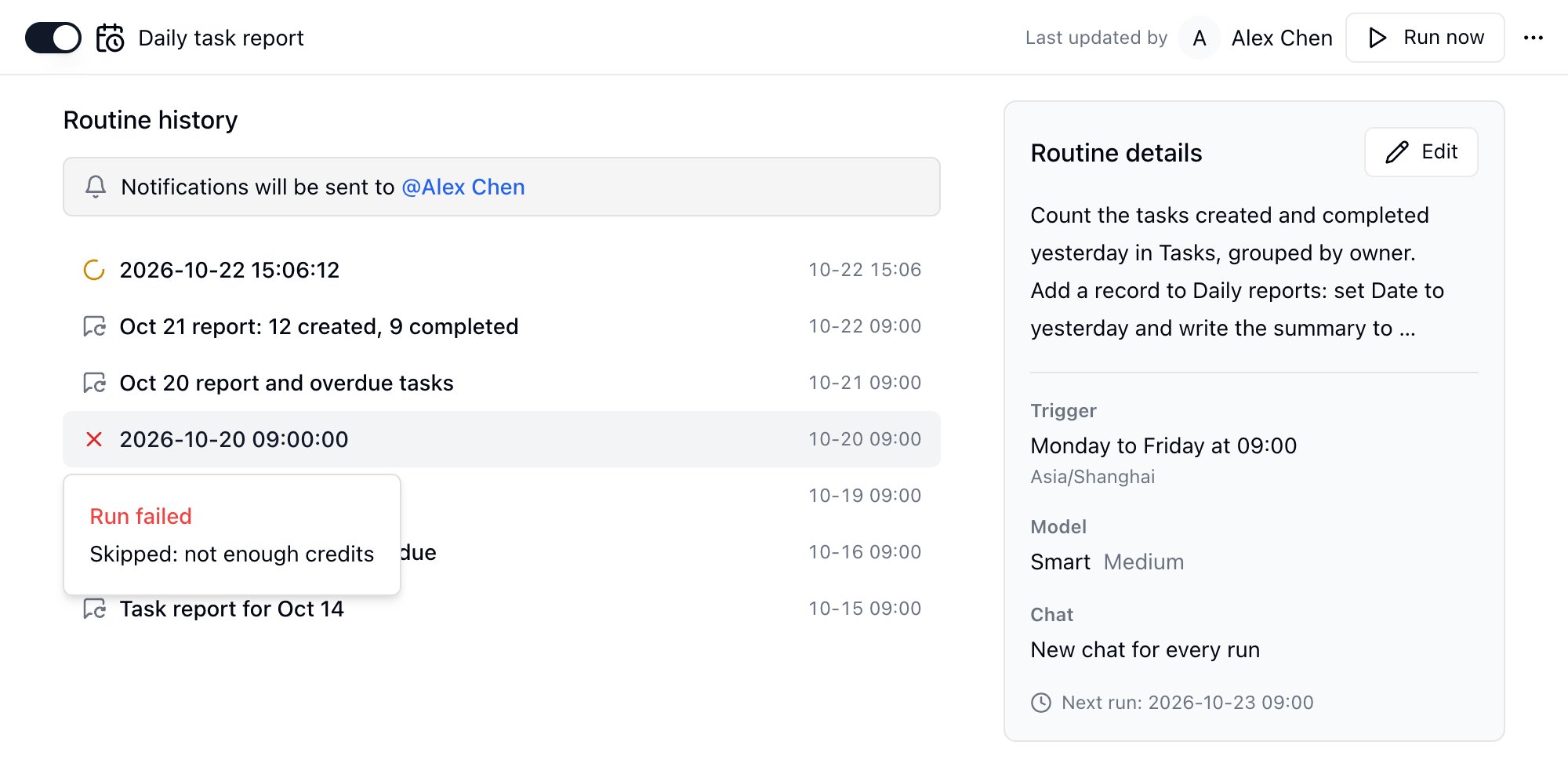
Each run’s conversation also appears in the chat history of the routine’s owner. Scheduled and manual runs carry the routine’s name; event-triggered runs are renamed automatically based on the objective and the event received, so each event is easy to tell apart in the history. Deleting a routine does not delete these conversations: they keep their names and become ordinary chats.
A project’s owner and creator can create, edit, and delete routines; other collaborators have read access. Every collaborator can view routine history and the conversation of each run. With the Authority Matrix enabled, members see routine history only for the routines they are granted.
Owner
A routine runs as its owner: each run’s conversation belongs to the owner, and failure and disconnection notifications go to the owner too. The Last updated by label at the top of the page shows the owner. A new routine’s owner is its creator. After that, the owner is whoever most recently activated the routine or clicked Update to publish changes. Saving a draft, renaming, or deactivating does not change the owner. If the owner can no longer edit the routine, for example because their account was deactivated, they were removed from the project or space, or they lost edit permission, the routine passes automatically to the member who has been an owner of the project (or its space) the longest, and keeps running.Failure Alerts and Automatic Deactivation
When a run fails or credits run out, Teable notifies the routine’s owner, named under Notifications will be sent to at the top of the routine history list. Failure notifications are not sent every single time, so that a long run of failures does not flood the recipient. After 5 consecutive failures the routine is deactivated automatically and a separate notification goes out. Turn the switch back on once the problem is fixed; the count resets after the next successful run. Not every unsuccessful run counts toward that total: runs skipped because the previous run was still in progress, because they timed out in the queue, or because the AI agent was unavailable, along with canceled runs (someone interrupted the run, or the routine or its project was deleted), are not failures and produce no notification. A credit shortfall does count, so leaving credits unfunded eventually deactivates the routine.FAQ
Do routines consume credits?
Do routines consume credits?
Yes. Every run is an AI chat and is billed against the space’s credits by actual usage, listed under type Routine in Credit usage summary on the billing page. When credits run out the run is skipped and a notification is sent, and repeated skips eventually deactivate the routine.
If I edit the objective, does it affect the run that is in progress?
If I edit the objective, does it affect the run that is in progress?
No. The change is saved as a draft and only reaches the live version when you click Update. A run already under way keeps the configuration it started with.
Do routines in a project installed from a template run automatically?
Do routines in a project installed from a template run automatically?
Scheduled ones do. After a template install they are switched on the way its workflows are, and a schedule with no future occurrence stays a draft. Connector-event routines are not switched on: credentials do not come over with a template, so pick one of your own accounts before activating.
With Continue the previous run's chat, does the context grow without limit?
With Continue the previous run's chat, does the context grow without limit?
When the context approaches its limit, Teable compacts the conversation, so runs are not interrupted by it. Choose New chat for every run when each run should start from a clean context.